Stream footage is recorded using a Stream Video Recorder (SVR) or an Onboard Recording rule at any time using Smart View. Playback of continuously recorded video is available using the Customer website or Customer app.
To access Smart View
Note: By default, the SVR Timeline will automatically display footage starting from 30 minutes prior to when it is accessed.
To access Smart View using the Customer app:
- Log in to the Customer app.
- Tap Video.
- Tap Live.
- Tap
 on the desired camera to view SVR/CSVR/Onboard Recording footage.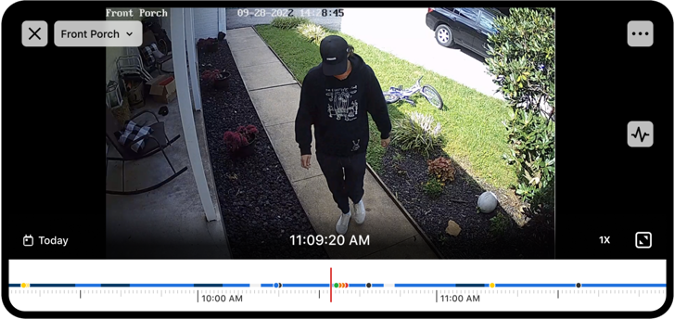
To access Smart View using the Customer website:
- Log in to the Customer website.
- Click Video.
- Click Onboard 24/7 Timeline or SVR Timeline.
- Using the video device dropdown menu, select the desired device to play back.
- Click
 to stream the device's recorded video.

Note: For Third-Party Cameras and Pro Series Alarm.com Cameras, the SVR timeline on the Customer website displays a darker shade when the camera observes a significant amount of motion via pixel change as shown in the following image: 
Smart View playback controls
Using the Customer app:
Basic controls
 play footage.
 skip forward 15 seconds.
 skip backward 15 seconds.
- 1x refers to the currently selected playback speed.*
Timeline scale controls
 choose a specific playback date or time.
- Pinch the timeline to zoom in or expand the range of the displayed timeline.
- Tap a marker on the Smart View timeline to jump to that point in time.
Using the Customer website:
Basic controls
 play footage.
 skip forward 30 seconds.
 skip backward 30 seconds.
- 1x refers to the currently selected playback speed.
 choose a specific playback date.
 digitally zoom to look more closely at the playback. For more information about the digital zoom feature, see the Digital Zoom section in View live video.
Timeline scale controls
- HOUR and DAY buttons are available to adjust the timeline scale using the Customer website.
 skip ahead by the current timeline scale.
 skip back by the current timeline scale.
Additional features available using the Customer website
Hotkey navigation
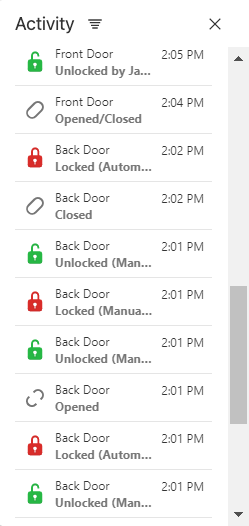
Timeline event filters using the Customer website
- If the Activity pane is closed, click
 .
. - Click
 .
. - Using the available dropdown menus, select the desired event filters.
- Click Apply.
Expand and collapse concurrent timelines
- Click
 to view only one camera's timeline bar
 - Click
 to view all selected camera timelines at once.
Download saved video from Onboard Recordings
- Log in to the Customer website.
- Click Video.
- Click Onboard 24/7 Timeline.
- Click
 to export direct video.
- Click Export Video.
- Using the camera selection dropdown menu, select the desired device.
- In the Download Video pop-up window, choose the day, start time, whether to include audio, and a duration of up to 60 minutes.
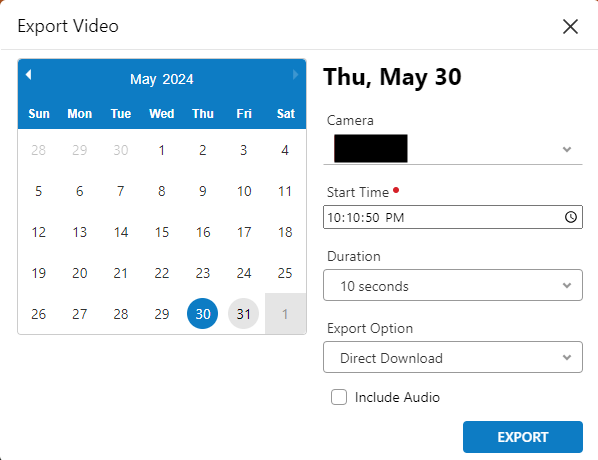
- Click Export.
- Click Ok.
- The requested clip will begin downloading to the computer being used.
Additional features available using the Customer app
Timeline navigation
- Tap a marker on the Smart View timeline to jump to that point in time.
- Scroll back and forth on the timeline to move through the activity feed history.
- Pinch the timeline to zoom in or expand the range of the displayed timeline.
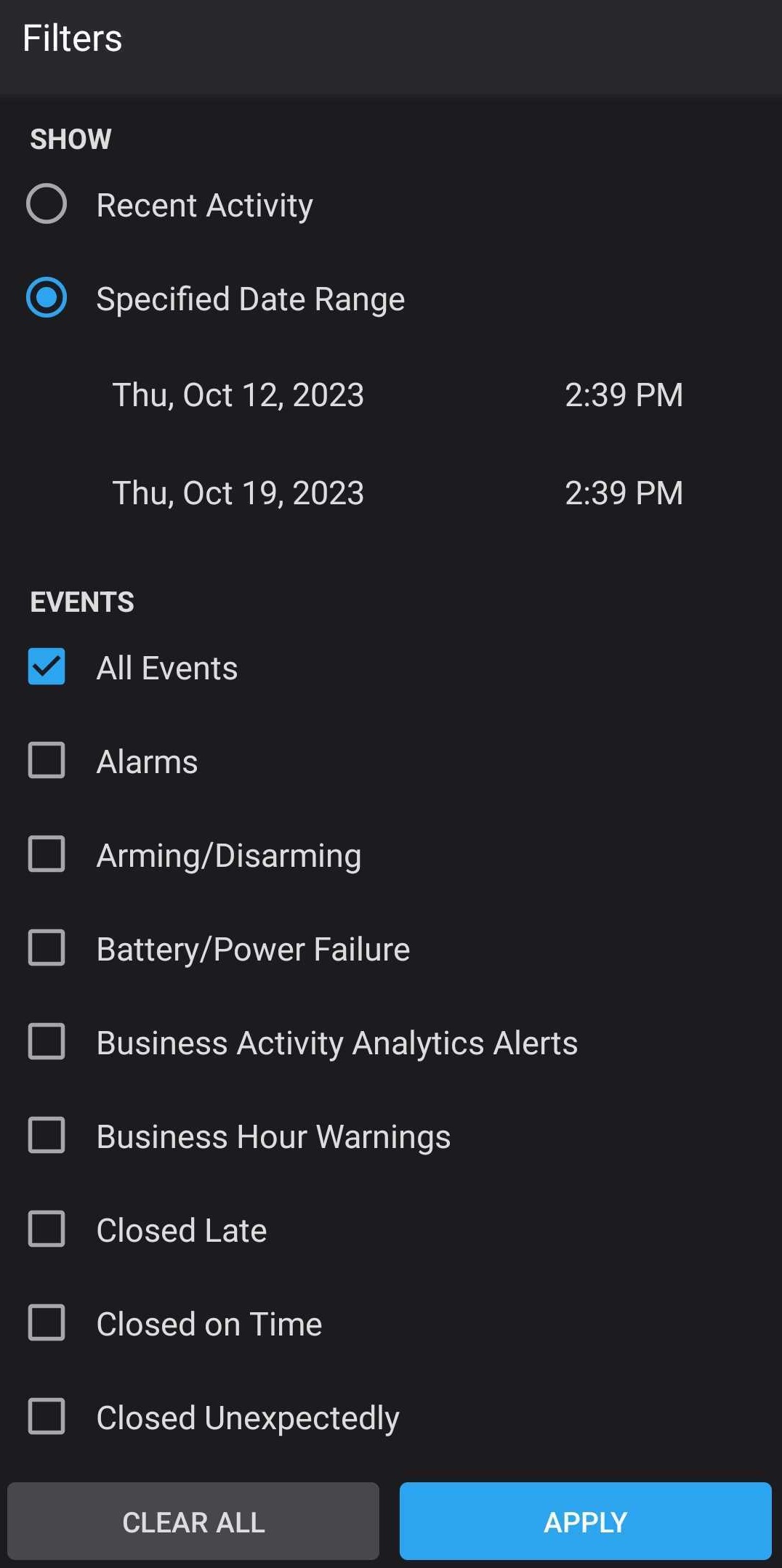
Timeline event filters using the Customer app
- Tap
 .
. - Tap to select the desired event filters.
- Tap Apply.
Landscape activity feed
You can access activity feed recorded events in landscape view using the Customer app.
- Log in to the Customer app.
- Tap Video.
- Tap Live.
- Tap to select the desired camera.
- Tap
 on the desired camera to view.
 - Turn the phone to landscape position.
- Tap
 .
.
Was this article helpful?
That’s Great!
Thank you for your feedback
Sorry! We couldn't be helpful
Thank you for your feedback
Feedback sent
We appreciate your effort and will try to fix the article